
In this Article
- Summary
- App Registration
- Supported account type and Redirect URI
- Optional Claims
- Implicit Grant and Hybrid Flows
- Establishing a Scope
- Create User Group to Restrict Access
Summary
In order to make use of SSO with Aiwyn’s Firm Portal, there are a few steps that must be completed:
- Configure an “App Registration” for Aiwyn’s Firm Portal
- Configure an Application ID URI scope
- Configure Optional Claims
App Registration
Aiwyn’s Firm Portal must be configured via “App Registration” within Azure Active Directory.
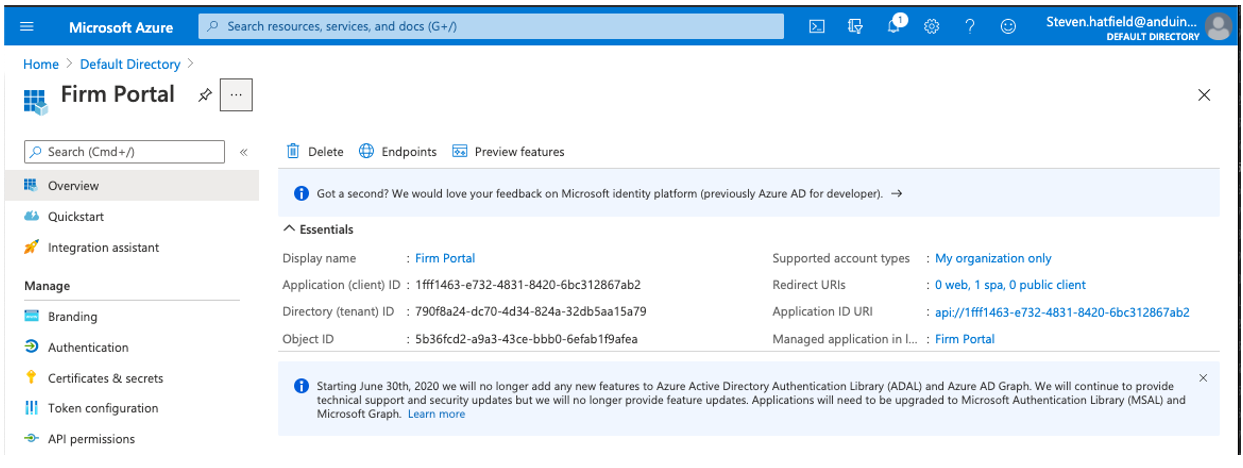
When you go into the AFP configuration, you will see something similar to the below.
- First, create the new application:
- Next, select Create your own application
- Select Register an application to integration with Azure AD
- Name your new application “Aiwyn” or something similar
Supported account type and Redirect URI
- Select the single tenant option under supported account type
- Enter the following information for the Redirect URI: https://an-prd.firebaseapp.com/__/auth/handler
Optional Claims
Aiwyn requires a few optional claims to be configured for placement in the JWT.
- First, be sure you’re on the App registrations experience page by clicking single sign-on, then the name of the app you just created.
- Please make sure to click the link of the application to navigate through to the next steps.
- Navigate to the Token configuration page to add the following optional claims. Be sure to Turn on the Microsoft Graph if prompted. Note, these should be “Access” token type.
- family_name
- given_name
Implicit Grant and Hybrid Flows
- Navigate to the Authentication page to and select the Access tokens and ID tokens checkboxes
Important: We need the Application (client) ID and Directory (tenant) ID values provided to Aiwyn through your IT Checklist provided during Implementation.
Establishing a Scope
- In the same area, navigate to “Expose an API”
- Click “Add a scope”
- Save the scope proposed, then set the “Scope name” as “app” as directed in the screenshot above
- Set “Admin” as the “Admin content display name” and the “Admin consent description” fields
- Click “add scope”
Restricting Access
In order to ensure only certain Firm Staff (or other members of the same SSO Environment) can access the Aiwyn Firm Portal, restrict access by following these steps in Azure:
- Go to the Properties of the Aiwyn Application
- Under "Assignment Required" select "Yes"
- Save changes
Granting Access to Aiwyn Firm Portal
With the above restrictions in place, the Aiwyn application must be granted to your identified Firm staff's SSO Users.
You can accomplish this by either enabling the Aiwyn application for SSO users one at a time, or if you have them available in your version of Azure, create (or modify) an SSO User Group so that only members of the group can access the Aiwyn application.
In order to ensure we provide the most up to date information, please refer to the following Microsoft Azure help article (it will open in new tab).